Most engineers assume POST requests cannot be cached. That assumption is costing their teams unnecessary backend load, slower response times, and wasted infrastructure spend — every single day. When I was working on a high-traffic travel booking API on Azure API Management, our backend was getting hammered by identical POST requests with the same payload, dozens of times per minute. The backend processing was heavy. The response never changed for the same input. We were rebuilding the same result over and over.
The fix was custom POST request caching in Azure APIM — using cache-lookup-value and cache-store-value policies with a dynamically built cache key from the request body. After implementing it, backend calls for repeated payloads dropped by over 70%. Response times for cache hits went from 400ms to under 10ms.
In this guide, you will learn exactly how to build a complete Azure APIM POST request caching solution — handling all three real-world content types, building a reliable cache key, and knowing precisely when to use this pattern and when to avoid it.
Why POST Request Caching in Azure APIM Is Worth Your Attention
Azure APIM’s built-in cache-lookup and cache-response policies work out of the box for GET requests — they use the URL as the cache key. However, POST requests send their data in the request body, not the URL. As a result, APIM cannot cache POST responses automatically.
Furthermore, most tutorials only show caching for application/json content types. In real production environments, APIs receive POST requests in three different formats — and your caching policy needs to handle all of them reliably. Specifically, the three content types you will encounter are:
- application/json — the most common modern API format. Payload arrives as a JSON body.
- application/x-www-form-urlencoded — used by legacy clients, HTML forms, and many third-party integrations.
- multipart/form-data — used when clients send both JSON data and file uploads in the same request.
💡 Key principle: APIM never compares request payloads directly. Instead, you extract the fields that drive your response, build a unique string called a cache key, and APIM uses that string as the lookup identifier. Same input fields = same key = cache hit.
When Should You Cache a POST Request in Azure APIM?
Before writing a single line of policy XML, confirm your POST endpoint actually qualifies for caching. Not every POST call should be cached — and caching the wrong one causes serious problems.
Cache these POST calls:
- Read-heavy search or filter operations sent as POST because the query is too complex for a URL query string — for example, flight searches, product filters, or report generation.
- Heavy computation endpoints where identical inputs always produce identical outputs — pricing calculations, eligibility checks, or recommendation engines.
- Third-party API proxies where the upstream call is slow and expensive but the response is stable for a known time window.
Never cache these POST calls:
- State-changing operations — anything that creates, updates, or deletes data. Caching these means repeated identical requests silently skip the backend, and your data is never written.
- Payment or transaction endpoints — retrying a cached payment response causes silent double-charge risks or missed payments.
- Authentication or token endpoints — one-time tokens, OTPs, and session credentials must never be served from cache.
- Real-time or per-user personalised responses — if the same payload returns different results for different users, a shared cache key will return the wrong user’s data.
⚠️ Rule of thumb: if you could safely call the same POST endpoint 100 times with the same payload and always expect the same response — it is safe to cache. If the 100th call should behave differently from the first — never cache it.
How Azure APIM POST Request Caching Works
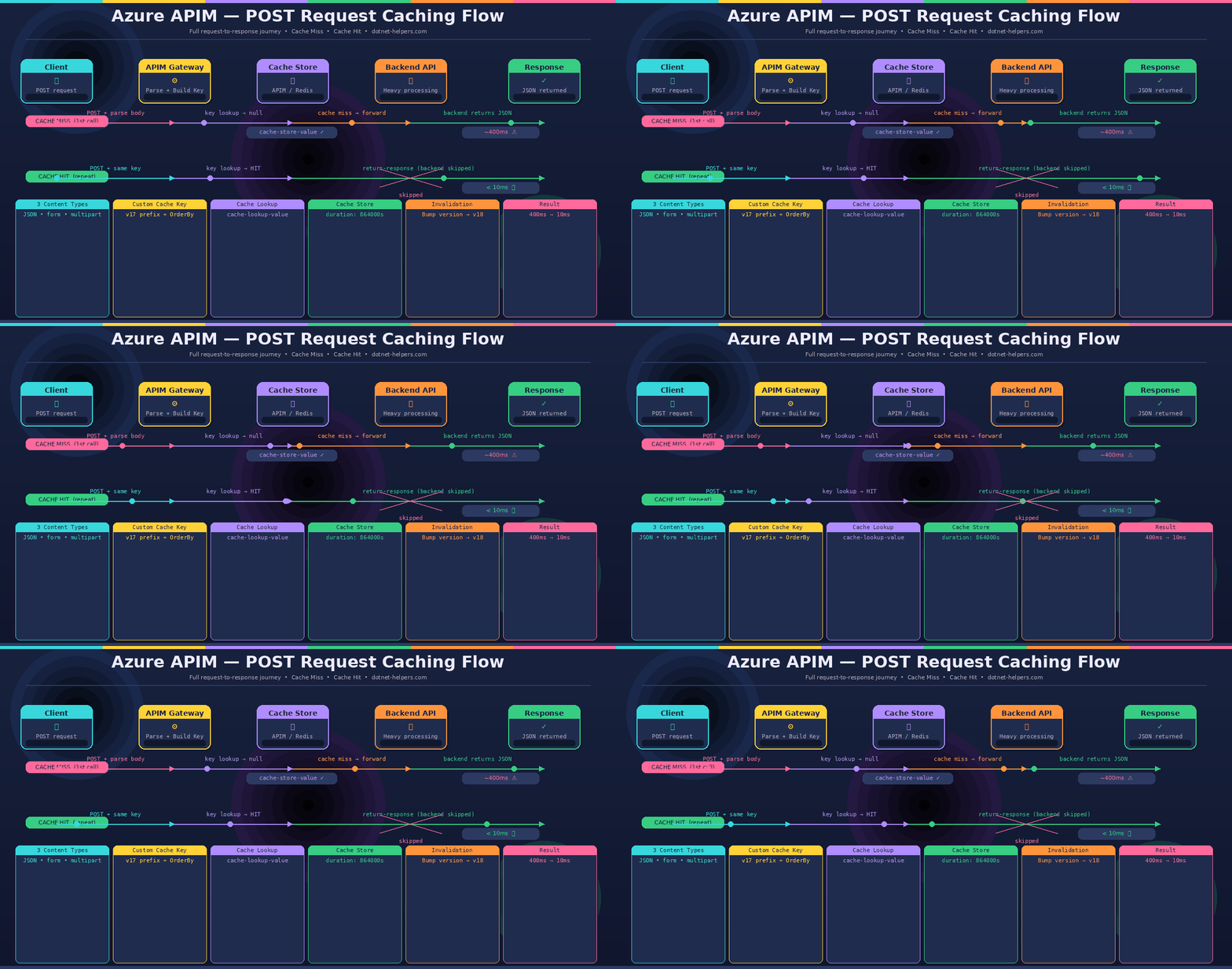
Understanding the flow before writing the policy saves a lot of debugging time. Here is what happens on the first call (cache miss) and the second call (cache hit):
First call — cache miss: The request arrives at APIM. The inbound policy reads the request body, extracts the relevant fields, and builds a unique cacheKey string. Next, cache-lookup-value checks whether that key exists in the cache. Because it is the first call, nothing is found. Therefore, APIM forwards the request to the backend. The backend returns a response. In the outbound policy, cache-store-value saves the response body against the cacheKey for a set duration.
Second call — cache hit: The same payload arrives. APIM builds the identical cacheKey string. This time, cache-lookup-value finds the stored response. As a result, APIM immediately returns the cached response using return-response — without ever touching the backend. The entire round-trip is eliminated.
Understanding the Cache Key Design
Your cache key is the most critical part of the entire solution. Get it wrong and you either serve stale data to the wrong callers or fragment your cache so badly that you never get a hit. Here is the key design used in the complete policy below:
cacheKey = "v2_mycustomcache-" + all JSON fields sorted alphabetically + joined by "-"
// Example payload: { "Channel": "DESKTOP", "Type": "TRAIN", "Unit": "BU-UNIT" }
// Result: v2_mycustomcache-DESKTOP-BU-UNIT-TRAIN
Three important design decisions are built into this key. First, the v2_ prefix acts as a version tag — when you need to invalidate all cached responses after a backend change, simply change this prefix and all existing keys instantly become misses. Second, properties are sorted alphabetically with .OrderBy(p => p.Name) — this ensures the key is identical regardless of the order fields arrive in the payload. Third, all field values are joined into a single flat string — making the key readable in logs and easy to debug.
The Complete Azure APIM POST Request Caching Policy
This policy handles all three content types in a single implementation. Copy it into your APIM policy editor and adjust the cache key prefix and duration to match your use case:
<policies>
    <inbound>
        <base />
        <!-- Step 1: Clear cookies to prevent cache pollution -->
        <set-header name="Cookie" exists-action="override">
            <value />
        </set-header>
        <!-- Step 2: Read and preserve the full request body -->
        <set-variable name="requestBodyRaw"
            value="@(context.Request.Body.As<string>(preserveContent: true))" />
        <set-variable name="isCacheable" value="@(false)" />
        <!-- Step 3: Parse body by Content-Type -->
        <choose>
            <!-- Handler 1: application/x-www-form-urlencoded -->
            <when condition="@(context.Request.Headers
                    .GetValueOrDefault('Content-Type','')
                    .ToLower().Contains('application/x-www-form-urlencoded'))">
                <set-variable name="isCacheable" value="@(true)" />
                <set-variable name="jsonEncoded"
                    value="@(((string)context.Variables['requestBodyRaw'])
                        .Substring(((string)context.Variables['requestBodyRaw'])
                        .IndexOf('=') + 1))" />
                <set-variable name="jsonDecoded"
                    value="@(System.Net.WebUtility.UrlDecode(
                        (string)context.Variables['jsonEncoded']))" />
                <set-variable name="innerRequest"
                    value="@((JObject)Newtonsoft.Json.JsonConvert
                        .DeserializeObject(
                            (string)context.Variables['jsonDecoded']))" />
            </when>
            <!-- Handler 2: multipart/form-data -->
            <when condition="@(context.Request.Headers
                    .GetValueOrDefault('Content-Type','')
                    .ToLower().StartsWith('multipart/form-data'))">
                <set-variable name="isCacheable" value="@(true)" />
                <set-variable name="boundary" value="@{
                    string ct = context.Request.Headers
                        .GetValueOrDefault('Content-Type', '');
                    int idx = ct.IndexOf('boundary=');
                    if (idx >= 0)
                        return ct.Substring(idx + 9).Split(';')[0].Trim();
                    return '';
                }" />
                <set-variable name="jsonPart" value="@{
                    string body = (string)context.Variables['requestBodyRaw'];
                    string boundary = (string)context.Variables['boundary'];
                    if (string.IsNullOrEmpty(boundary)) return '';
                    string delim = '--' + boundary;
                    int start = body.IndexOf('name=\'jsonRequest\'');
                    if (start >= 0) {
                        int cs = body.IndexOf('\r\n\r\n', start) + 4;
                        int ce = body.IndexOf(delim, cs);
                        if (ce == -1) ce = body.IndexOf(delim + '--', cs);
                        if (cs > 3 && ce > cs)
                            return body.Substring(cs, ce - cs).Trim();
                    }
                    return '';
                }" />
                <set-variable name="innerRequest" value="@{
                    string json = (string)context.Variables['jsonPart'];
                    if (!string.IsNullOrEmpty(json)) {
                        try { return (JObject)Newtonsoft.Json.JsonConvert
                                .DeserializeObject(json); }
                        catch { return new JObject(); }
                    }
                    return new JObject();
                }" />
            </when>
            <!-- Handler 3: application/json -->
            <when condition="@(context.Request.Headers
                    .GetValueOrDefault('Content-Type','')
                    .ToLower().Contains('application/json'))">
                <set-variable name="isCacheable" value="@(true)" />
                <set-variable name="requestBody"
                    value="@(context.Request.Body
                        .As<JObject>(preserveContent: true))" />
                <set-variable name="jsonRequestString"
                    value="@((string)((JObject)context.Variables['requestBody'])
                        ['jsonRequest'])" />
                <set-variable name="jsonRequestUnescaped"
                    value="@(System.Text.RegularExpressions.Regex
                        .Unescape((string)context.Variables
                            ['jsonRequestString']))" />
                <set-variable name="innerRequest" value="@{
                    try { return (JObject)Newtonsoft.Json.JsonConvert
                            .DeserializeObject((string)context.Variables
                                ['jsonRequestUnescaped']); }
                    catch { return new JObject(); }
                }" />
            </when>
        </choose>
        <!-- Step 4: Build cache key and look up cache -->
        <choose>
            <when condition="@((bool)context.Variables['isCacheable'])">
                <set-variable name="cacheKey" value="@('v2_mycustomcache-' +
                    string.Join('-',
                        ((JObject)context.Variables['innerRequest'])
                            ?.Properties()
                            .OrderBy(p => p.Name)
                            .Select(p => p.Value?.ToString() ?? '')
                        ?? new string[] { })
                )" />
                <cache-lookup-value
                    key="@((string)context.Variables['cacheKey'])"
                    variable-name="cacheResponse" />
                <choose>
                    <when condition="@(context.Variables
                            .ContainsKey('cacheResponse')
                            && context.Variables['cacheResponse'] != null)">
                        <return-response>
                            <set-header name="Content-Type"
                                exists-action="override">
                                <value>application/json</value>
                            </set-header>
                            <set-body>
                                @((string)context.Variables['cacheResponse'])
                            </set-body>
                        </return-response>
                    </when>
                </choose>
            </when>
        </choose>
    </inbound>
    <backend>
        <base />
    </backend>
    <outbound>
        <base />
        <!-- Step 5: Store response in cache on 200 OK -->
        <choose>
            <when condition="@((bool)context.Variables['isCacheable']
                    && context.Response != null
                    && context.Response.Body != null
                    && context.Response.StatusCode == 200)">
                <cache-store-value
                    key="@((string)context.Variables['cacheKey'])"
                    value="@(context.Response.Body
                        .As<string>(preserveContent: true))"
                    duration="172800" />
            </when>
        </choose>
    </outbound>
    <on-error>
        <base />
    </on-error>
</policies>
Policy Walkthrough: What Each Section Does
Step 1 — Clear the Cookie Header
Cookies are cleared from the inbound request before any caching logic runs. This prevents session cookies from polluting the cache key or causing different users to share cached responses they should not see.
Step 2 — Read and Preserve the Request Body
The request body is read once and stored in requestBodyRaw with preserveContent: true. This is critical — in APIM, reading a request body consumes it by default. Without preserveContent: true, the backend receives an empty body. Furthermore, the isCacheable flag starts as false — it only becomes true if a supported Content-Type is detected.
Step 3 — Content-Type Detection and Azure APIM POST Caching Payload Parsing
The choose block detects which Content-Type was sent and parses the payload accordingly. Each handler extracts the same end result — a JObject named innerRequest containing the relevant fields. As a result, Step 4 (key building) works identically regardless of how the payload arrived.
Step 4 — Build Cache Key and Azure APIM POST Cache Lookup
The cache key is built by sorting all properties of innerRequest alphabetically and joining their values with a hyphen. Next, cache-lookup-value checks whether this exact key string exists in the cache. If a hit is found, return-response immediately returns the cached body — the backend is never called.
Step 5 — Store the Response After a Backend Call
In the outbound policy, if the backend returned a 200 OK and the request was cacheable, cache-store-value saves the response body against the cache key for 172,800 seconds — that is 48 hours. Consequently, any identical request within the next 48 hours gets served from cache instantly.
💡 Adjust the duration value to match your data freshness requirements. For real-time pricing, use 300 seconds (5 minutes). For stable reference data, 172800 seconds (48 hours) or more is appropriate.
Common Mistakes That Break Azure APIM POST Request Caching
- Not using preserveContent: true when reading the body. This is the most common mistake. Without it, APIM reads and discards the request body — the backend receives nothing and returns a 400 or 500 error. Always set
preserveContent: trueon everyBody.As<>()call. - Building a cache key that is too broad. If your key only uses one field from a five-field payload, requests with different values for the other four fields will all hit the same cache entry and get wrong responses. Include every field that meaningfully changes the response.
- Building a cache key that is too granular. Conversely, including timestamp or session ID fields in the key means you never get a cache hit. Only include stable, response-determining fields.
- Caching without checking the status code. The outbound
cache-store-valuemust checkcontext.Response.StatusCode == 200before storing. Otherwise, error responses get cached and served to subsequent callers — causing hard-to-diagnose intermittent failures. - Not versioning the cache key prefix. When your backend response schema changes, you need a way to invalidate all cached entries immediately. Without a version prefix like
v2_, old cached responses continue being served. Incrementing the prefix instantly invalidates the entire cache without touching any infrastructure.
Internal vs External Redis Cache for Azure APIM POST Caching
The policy above works with both APIM’s built-in internal cache and an external Azure Cache for Redis. Here is when to use each:
- Internal APIM cache — suitable for development, staging, and single-region deployments. Simple to set up with no extra infrastructure. However, in the classic APIM tiers, internal cache contents do not persist across service updates. The v2 tiers provide persistent built-in cache.
- External Azure Cache for Redis — recommended for production, multi-region, or high-throughput deployments. Provides persistence, higher capacity, and cache sharing across multiple APIM units. For production workloads, connecting an external Azure Cache for Redis is usually the better option — create a Redis instance in the same region as your APIM instance, then go to APIM → External cache → Add and provide the Redis connection string.
Conclusion: Azure APIM POST Request Caching Done Right
Azure APIM POST request caching is one of the highest-impact performance optimisations available in the APIM policy toolkit — and one of the most underused. By combining careful payload parsing across all three content types with a well-designed cache key, you can transform heavy POST endpoints into near-instant responses for repeated inputs. Furthermore, the versioned key prefix gives you a clean invalidation mechanism whenever your backend schema changes.
In summary, the five things that make this work reliably are: always preserve the request body, handle all three content types, sort your key fields alphabetically, only store on 200 OK responses, and version your cache key prefix from day one. Apply this pattern only to idempotent read-heavy POST operations — and never to state-changing or security-sensitive endpoints.
Quick Reference
- Read body: always use
Body.As<string>(preserveContent: true) - Build key: extract fields → sort alphabetically → join with hyphen → prefix with version tag
- Cache lookup:
<cache-lookup-value key="..." variable-name="cacheResponse" /> - Cache store:
<cache-store-value key="..." value="..." duration="172800" /> - Invalidate all: increment the version prefix in the cache key
Frequently Asked Questions
Q: Does APIM automatically compare the full POST payload to decide on a cache hit?
No. APIM never compares payload content directly. It only checks whether the exact cache key string you generate already exists in the cache store. Your key design entirely determines what counts as a cache hit or miss.
Q: What happens if a field in my payload changes by even one character?
A new cache key is generated, resulting in a cache miss. APIM forwards the request to the backend, gets a fresh response, and stores it under the new key. The old cached entry remains until it expires.
Q: How do I invalidate the cache immediately without waiting for the duration to expire?
The fastest way is to increment the version prefix in your cache key — for example, change v2_mycustomcache- to v3_mycustomcache-. All existing v2 keys instantly become orphaned and new requests build fresh v3 entries. Alternatively, use the APIM Management REST API to delete specific cache entries by key.
Q: Can I use this pattern with Azure Cache for Redis instead of the internal cache?
Yes. The cache-lookup-value and cache-store-value policies work with both APIM’s internal cache and an external Redis cache. No policy changes are needed — APIM automatically uses the external cache when one is configured, falling back to the internal cache if the external cache is unavailable.
Q: The cached response is being returned but the Content-Type header is wrong. How do I fix it?
In the return-response block, always explicitly set the Content-Type header using set-header. When APIM returns a response directly from cache without hitting the backend, it does not automatically carry forward the original response headers — you must set them manually in the policy.