
Your backend team says they will be ready in two weeks. Meanwhile, your frontend developers are stuck. Your QA team cannot test. Your client demo is tomorrow. Sound familiar? If you have worked on any API-driven project, you have hit this wall before. Fortunately, Azure API Management (APIM) mock responses solve this exact problem — and most developers do not know they are already included in their APIM subscription at no extra cost.
In this guide, you will learn not just how to set up APIM mock APIs — but when to use them, what mistakes to avoid, and how to use dynamic mocking for real-world scenarios that the official Microsoft docs do not cover.
Contents
Introduction: Why Mock APIs Save Real Projects
On a recent project, our team needed to integrate a payment gateway API that was still three weeks away from being production-ready. Instead of blocking three frontend developers, we stood up an APIM mock in under 10 minutes. The frontend team shipped on time. QA ran a full regression suite against the mock. The client saw a working demo. When the real backend arrived, we swapped it in with zero frontend changes.
That is the real value of APIM mock responses — not just as a development convenience, but as a team productivity multiplier that eliminates blockers across the entire delivery pipeline.
What Can You Mock in Azure APIM?
Before diving into the steps, it helps to understand what APIM mocking actually supports. Most tutorials only show the basic 200 OK response. In reality, you can mock much more:
- Static responses — a fixed JSON body returned every time. Good for happy-path testing.
- Dynamic responses — responses that change based on query parameters, headers, or request body values. Essential for realistic testing.
- Error simulation — return 404, 429, 500, or any HTTP status code to test how your frontend handles failures.
- Conditional responses — return different data based on who is calling (e.g., admin vs. standard user).
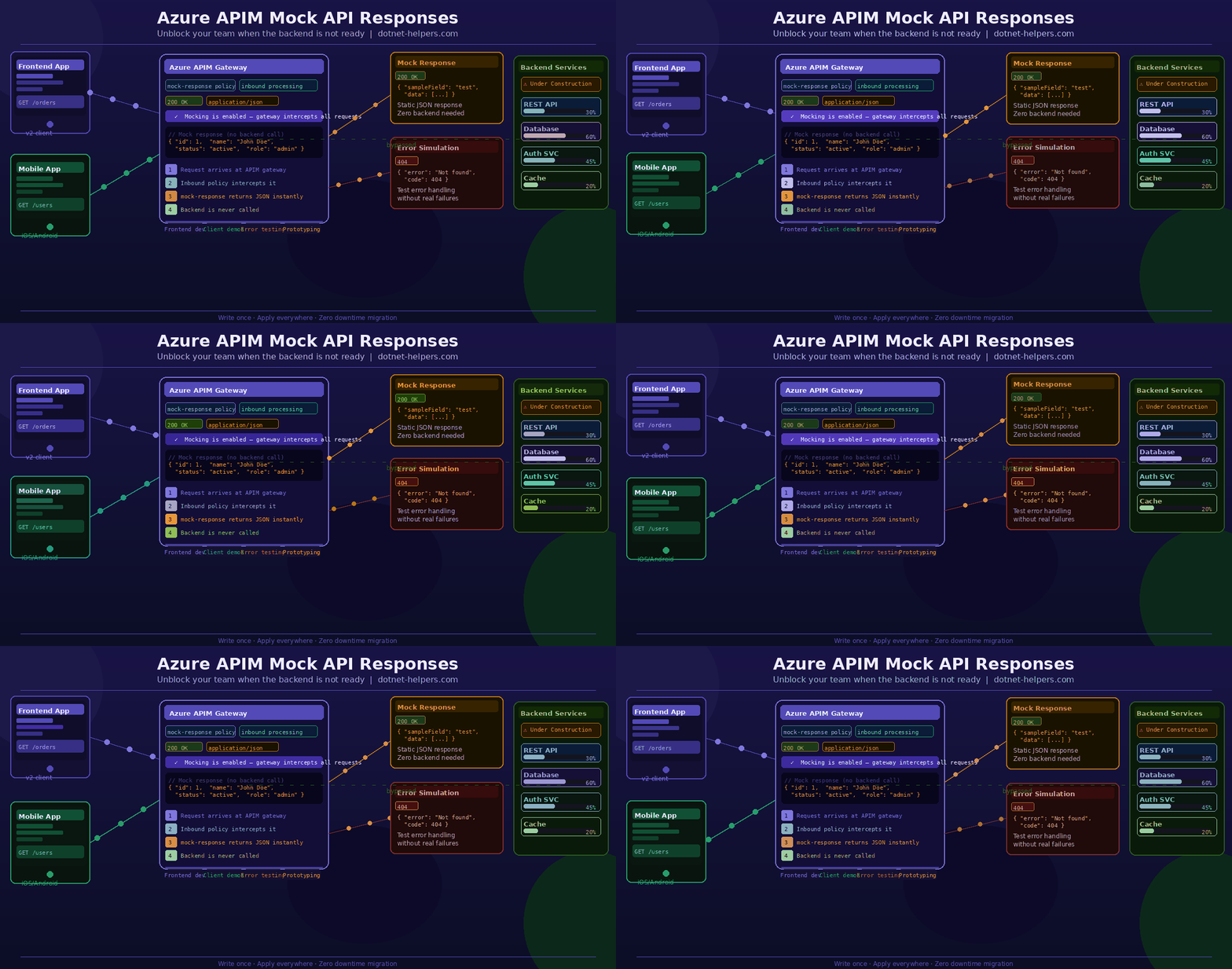
💡 Key insight: APIM mock responses live in the inbound policy pipeline. This means they intercept the request before it ever reaches your backend — making them completely safe to use alongside live APIs in the same APIM instance.
When Should You Use APIM Mock Responses?
Here are the four most common real-world scenarios where mocking in APIM saves the day:
- Backend not ready yet: Frontend and QA teams can start immediately. No more waiting on the backend team to hit a deadline before other work can begin.
- Client demos and prototypes: Stand up a fully working API in minutes. Show the client a live demo without deploying a single line of backend code.
- Error handling validation: Return 500, 503, or 429 on demand to confirm your frontend degrades gracefully. This is almost impossible to test reliably against a real backend.
- Contract-first API design: Define the API contract up front. Let both backend and frontend teams build against the mock simultaneously — then replace the mock when the real service is ready.
Step-by-Step: Create an Azure APIM Mock API Response
Follow these steps to set up your first mock API in Azure APIM. All screenshots below are from the Azure portal.
Step 1: Create a Test API (No Backend Required)
First, create an HTTP API with no backend. This is the blank canvas you will attach your mock policy to.
- Sign in to the Azure portal and navigate to your API Management instance.
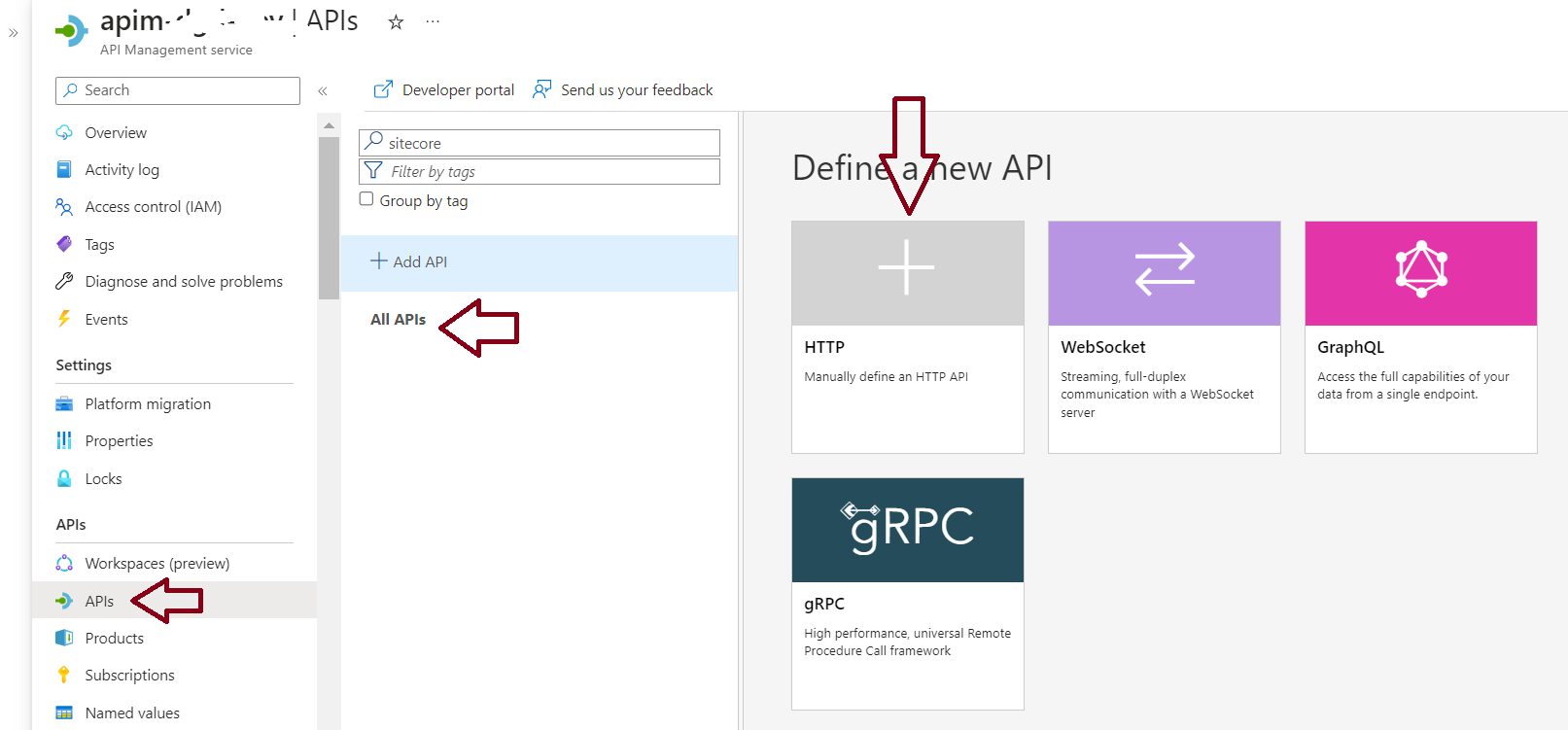
- Select APIs → + Add API → HTTP tile.
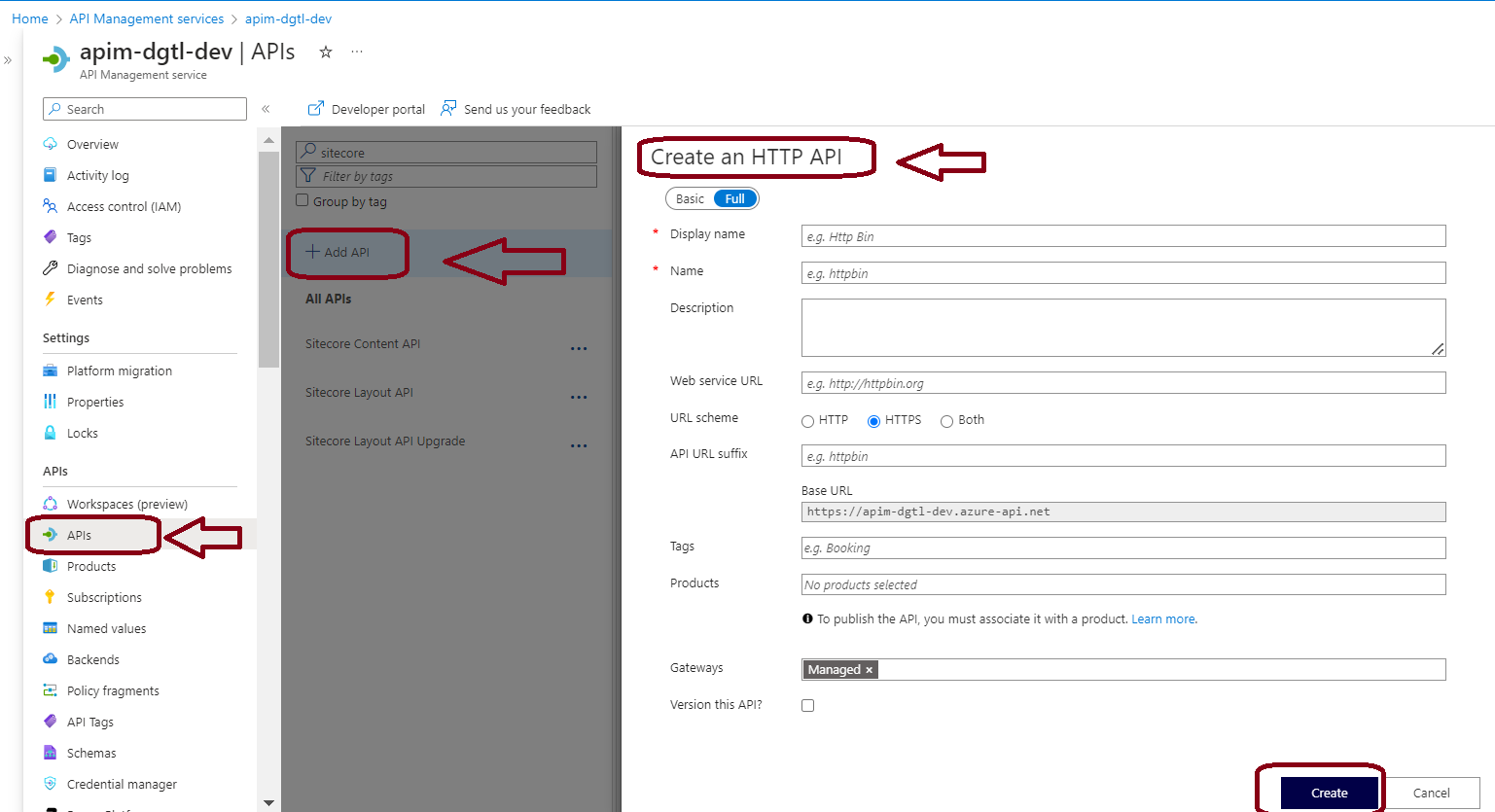
- In the Create an HTTP API window, select Full.
- Enter Test API for Display name.
- Select Unlimited for Products.
- Ensure that Managed is selected for Gateways.
- Click Create.
💡 Pro tip: Use a clear naming convention like “mock-[service-name]-api” so your team can instantly tell which APIs are mocks versus live. For example: mock-payment-api, mock-user-api.
Step 2: Add an Operation to the Test API
Next, add an operation. An operation is a single endpoint — for example, GET /users or POST /orders. In this step, you also define what the response should look like so APIM knows what to return when mocking is enabled.
- Select the API you just created and click + Add Operation.
- In the Frontend window, enter values for Display name, Name, and URL.
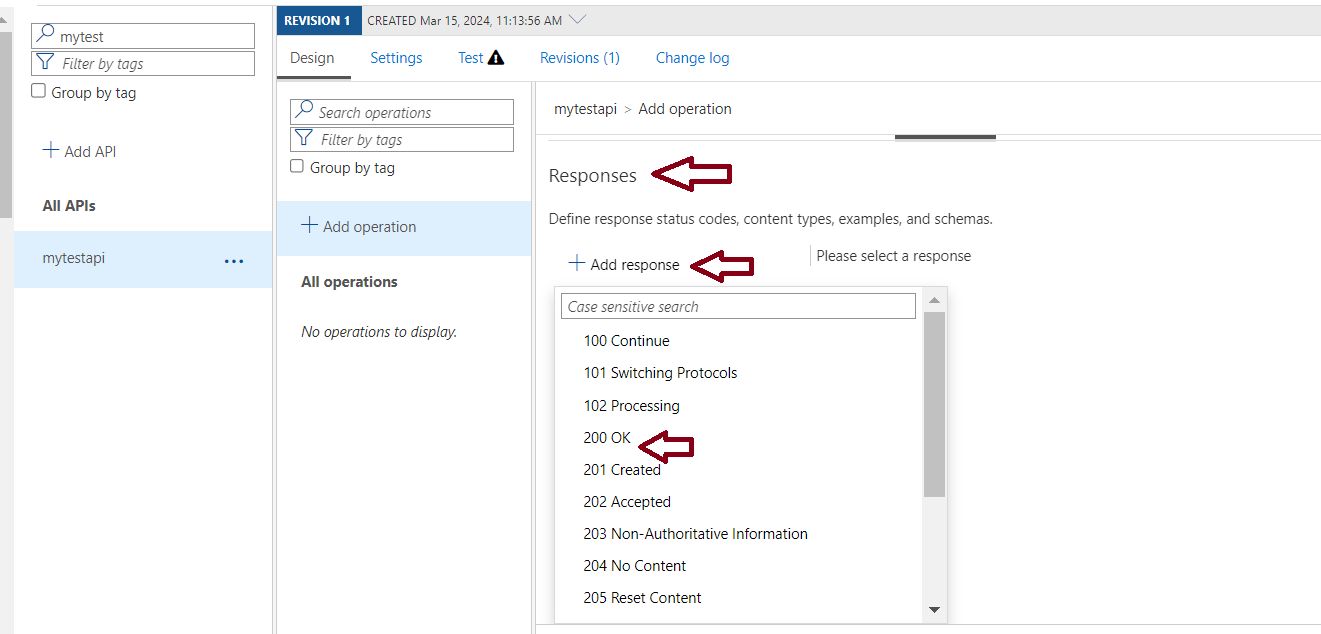
- Select the Responses tab, located under the URL and Description fields.
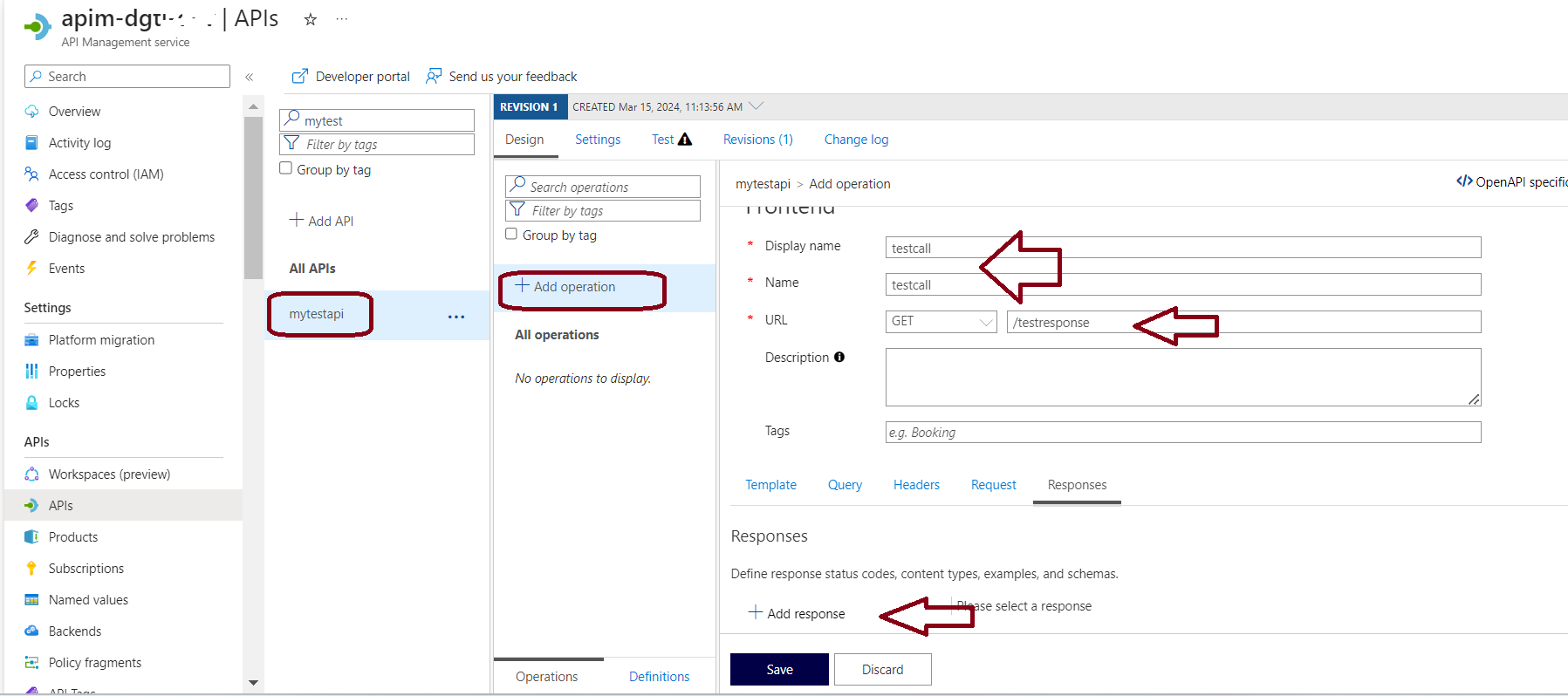
- Select + Add response and choose 200 OK from the list.
- Under Representations, select + Add representation. Enter
application/jsonand in the Sample text box, enter your mock JSON body. For example:
{ "sampleField" : "test" }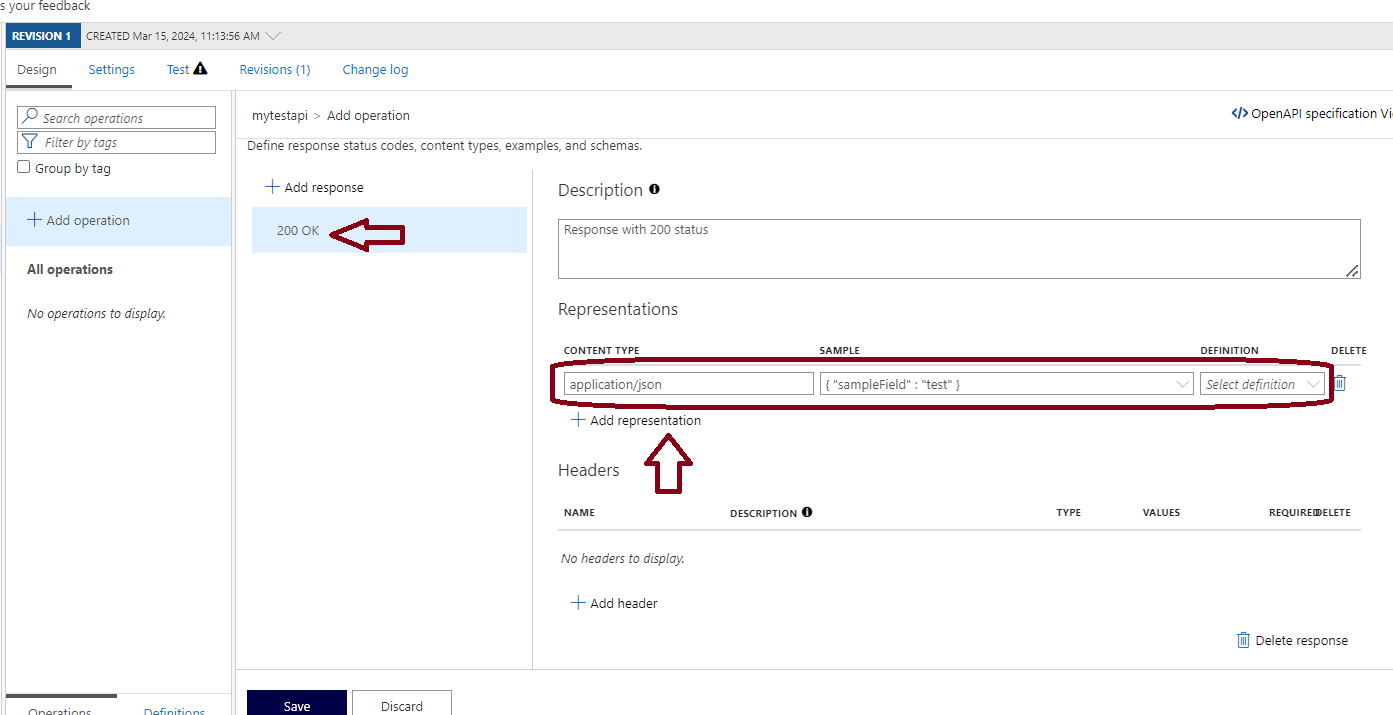
- Click Save.
⚠️ Common mistake: Many developers enter a minimal sample like { “id”: 1 } and then wonder why their frontend tests miss edge cases. Instead, use a realistic payload that matches your actual API contract — including all fields the frontend will consume.
Step 3: Enable the Mock Response Policy
Now, enable mocking by attaching the mock-response policy to the operation. This is the step that tells APIM to intercept the request and return your sample — without ever calling a backend.
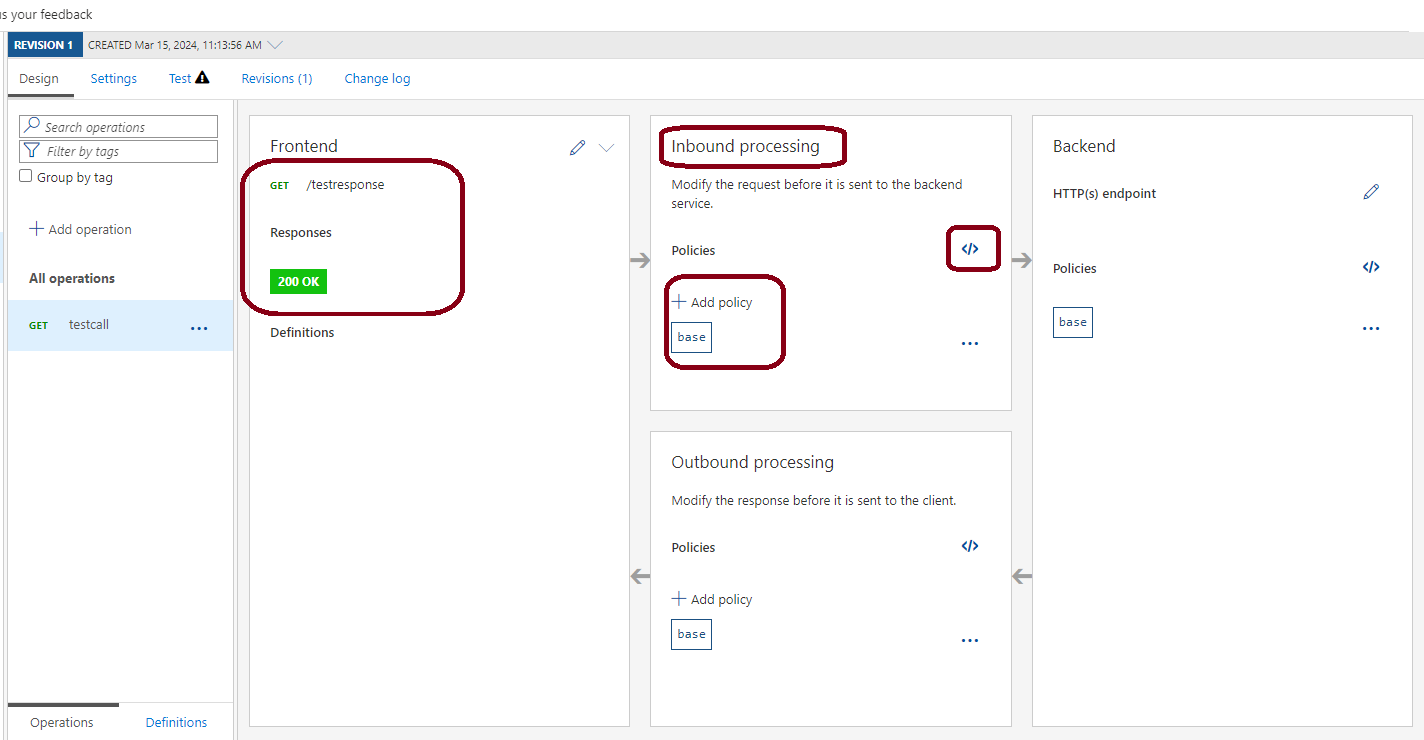
- Select the API and ensure the Design tab is selected.
- Select the test operation you added in Step 2.
- In the Inbound processing window, select + Add policy.
- Select Mock responses from the policy gallery.
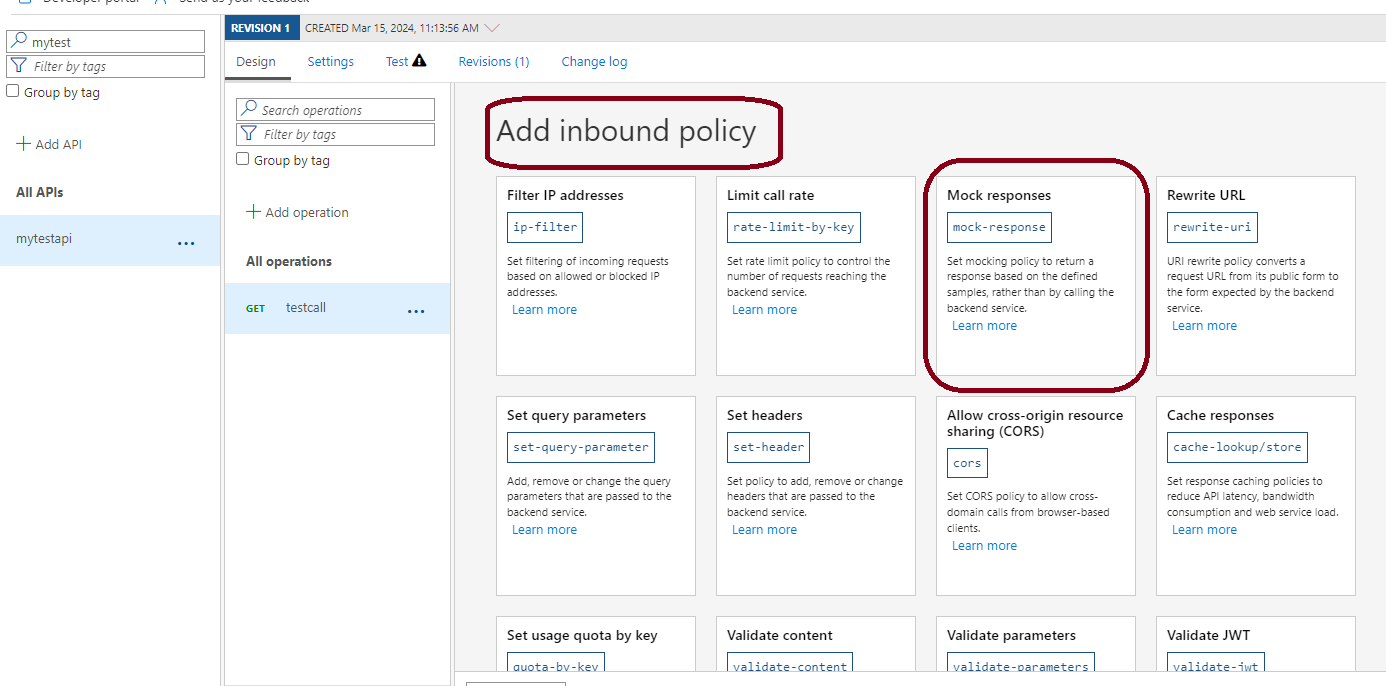
- In the API Management response textbox, type 200 OK, application/json.
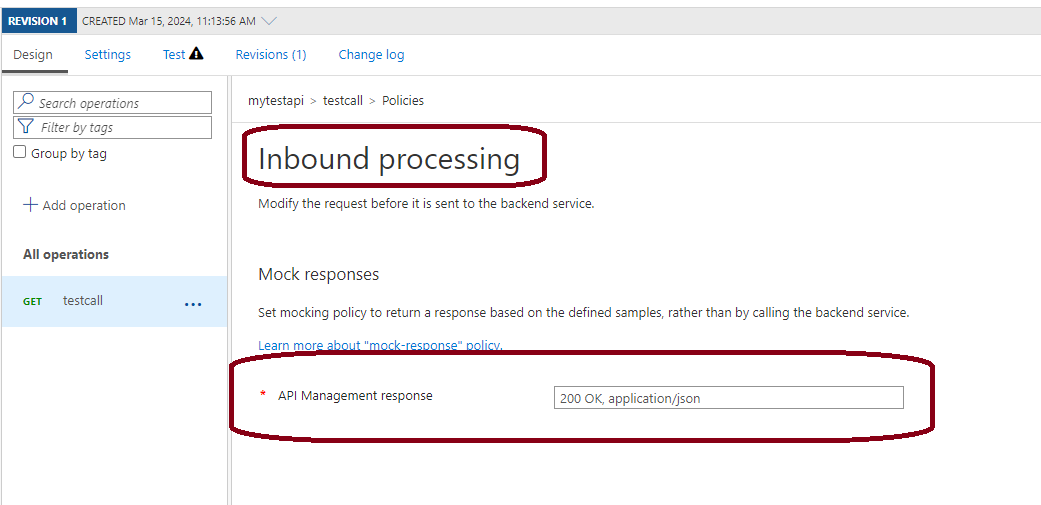
- Click Save. You will see a yellow “Mocking is enabled” banner appear at the top of the operation. That confirms the policy is active.
Step 4: Test the Mocked API
Finally, verify that your mock is working correctly. APIM has a built-in Test Console — no Postman needed.
- Select your API and click the Test tab.
- Select the Test call operation and click Send.
- The HTTP response appears at the bottom of the screen. You should see a 200 OK status and the JSON body you defined.
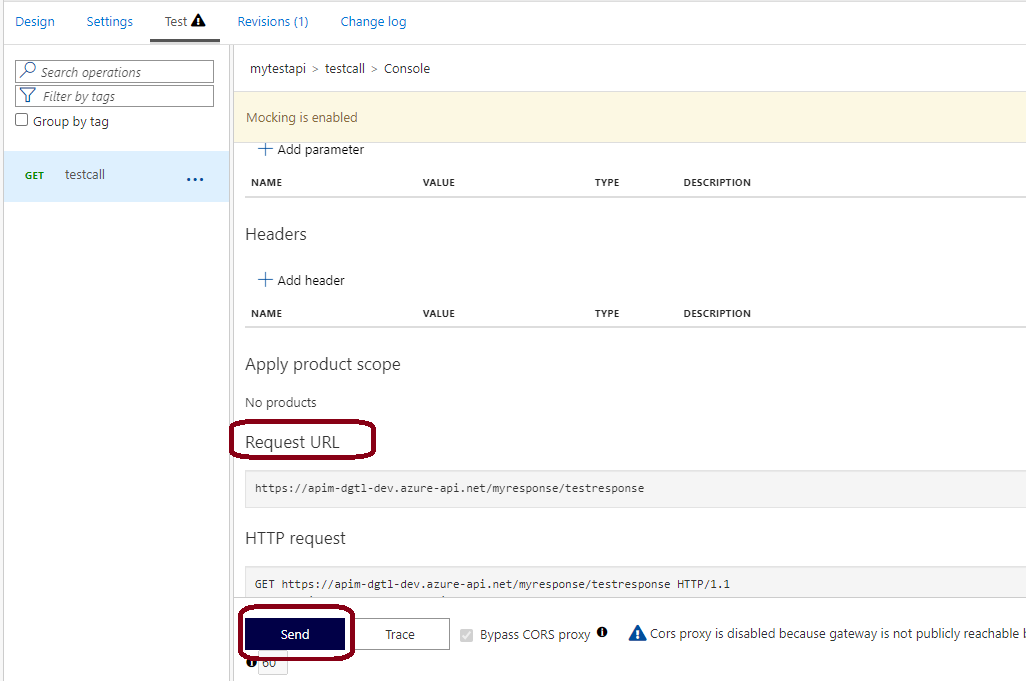
- Confirm the JSON response matches the sample you entered in Step 2.
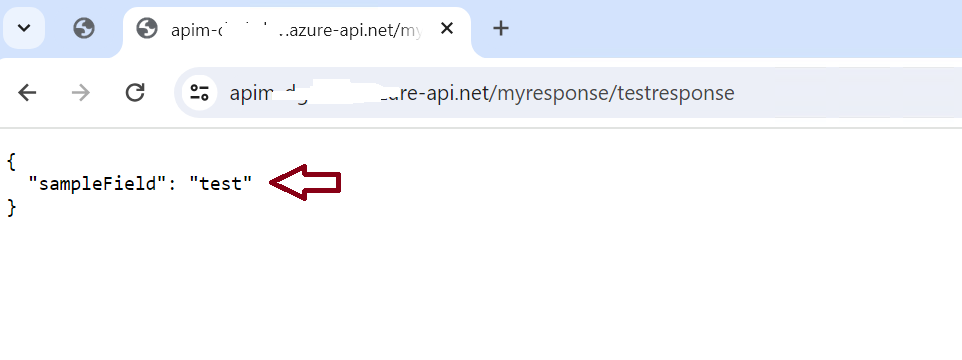
💡 If your APIM instance has IP restrictions, test by calling the APIM gateway URL directly in a browser or Postman. Find your gateway URL in the APIM instance → Overview tab.
Beyond Basics: Dynamic Mock Responses in Azure APIM
The basic setup above returns the same JSON every time. However, real-world testing needs more. For instance, you may want to return different data based on a query parameter, or simulate a 404 when a resource is not found. Fortunately, APIM policies make this straightforward.
Here is an example that returns a different response based on a userId query parameter:
<policies>
  <inbound>
    <base />
    <choose>
      <when condition="@(context.Request.Url.Query.GetValueOrDefault("userId", "") == "999")">
        <return-response>
          <set-status code="404" reason="Not Found" />
          <set-header name="Content-Type" exists-action="override">
            <value>application/json</value>
          </set-header>
          <set-body>{ "error": "User not found", "userId": "999" }</set-body>
        </return-response>
      </when>
      <otherwise>
        <mock-response status-code="200" content-type="application/json" />
      </otherwise>
    </choose>
  </inbound>
</policies>
With this policy in place, calling /users?userId=999 returns a 404 error. Any other userId returns the standard 200 mock. As a result, your frontend team can test both success and failure paths without any backend at all.
Mistakes to Avoid When Using APIM Mock Responses
Based on real project experience, here are the most common mistakes teams make with APIM mocking — and how to avoid them:
- Forgetting to remove the mock policy before go-live. The mock intercepts requests before they reach your backend. If you forget to remove it, your production API will keep returning fake data. Always add a task to your go-live checklist to verify the mock policy is removed.
- Using unrealistic sample data. A sample body of
{ "id": 1 }tells your frontend almost nothing. Instead, use a full realistic payload with all fields — including optional and nullable ones. - Only mocking the happy path. Most bugs happen at the edges — 404s, 500s, timeouts, and empty arrays. Mock those too so your frontend handles them correctly from day one.
- Not communicating which APIs are mocked. Without clear naming or documentation, developers may not realise they are calling a mock. Consequently, they report bugs that do not actually exist in the real backend. Use a naming convention and keep a shared list of active mocks.
Summary
Azure APIM mock responses are one of the most underused features in the entire APIM toolset. By using the mock-response policy, your team can eliminate development blockers, run realistic QA cycles, and deliver client demos — all without a live backend. Furthermore, dynamic mocking with the choose policy takes this further by simulating real error scenarios and conditional logic.
Key Takeaways
- Use
mock-responsepolicy to return static JSON responses without a backend. - Combine
chooseandreturn-responsepolicies for dynamic, conditional mock responses. - Always use realistic sample payloads — not minimal placeholders.
- Remove mock policies before go-live and add it to your deployment checklist.
- Validate responses using APIM’s built-in Test Console or Postman.
Frequently Asked Questions
Q: Does enabling mock responses affect other APIs in the same APIM instance?
No. Mock policies are scoped to a specific operation. They only affect the operation they are applied to — all other APIs and operations remain completely unaffected.
Q: Can I mock different HTTP status codes like 404 or 500?
Yes. Use the return-response policy with set-status to return any HTTP status code. This is particularly useful for testing how your frontend handles error states.
Q: Will APIM mock responses work in all pricing tiers?
Yes. The mock-response policy is available across all Azure APIM tiers, including the Consumption tier.
Q: How do I know if a mock policy is active on an operation?
A yellow “Mocking is enabled” banner appears at the top of the operation design view whenever a mock policy is active. In addition, always check the inbound policy XML before deploying to production.
Q: Can I use APIM mock responses for load testing?
Yes — and this is one of the best use cases. Because the mock bypasses your backend entirely, you can run load tests against the APIM gateway itself without stressing your backend services at all.
Related Articles
- Azure API Management Policy Fragments: Write Once, Apply Everywhere
- Azure API Version Handling with APIM Policy Fragments — Zero Downtime Guide