
Contents
Introduction to Horizontal Pod Autoscalers (HPAs)
In Kubernetes, a Horizontal Pod Autoscaler (HPA) is a critical resource that automatically scales the number of pods in a deployment, replica set, or stateful set based on observed CPU utilization, memory usage, or custom metrics. HPAs ensure that your applications can handle varying workloads efficiently by scaling out (adding more pods) during high demand and scaling in (removing pods) during low demand and another activity to monitor hpa by kubernetes hpa filtering.
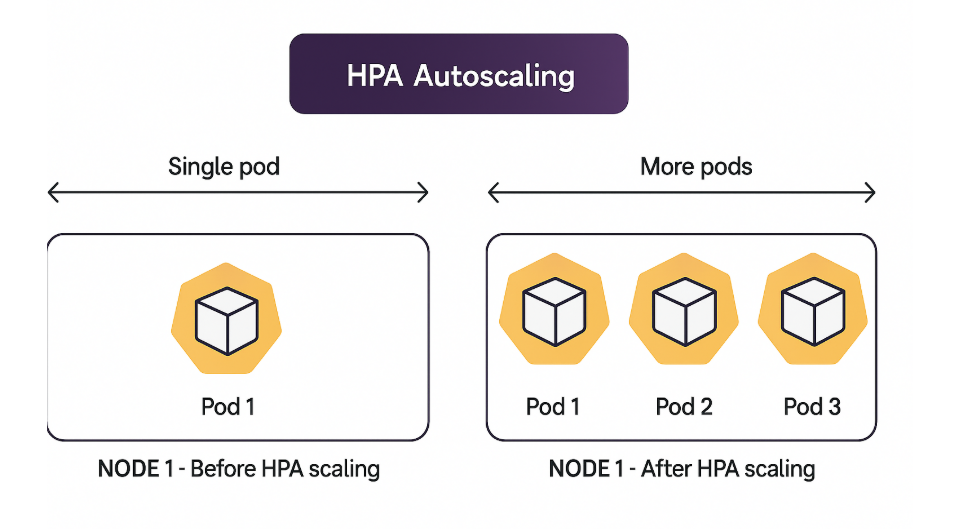
When managing Kubernetes clusters, you often need to monitor and filter HPAs across multiple namespaces. For example, you might want to list all HPAs in specific namespaces or filter them based on certain criteria. On Linux, the grep command is commonly used for filtering text output. However, Windows does not natively support grep, so alternative methods are required.
In this article, we’ll explore how to filter kubectl get hpa output on both Linux and Windows systems (kubernetes hpa filtering) , using native tools and third-party utilities.
kubernetes hpa filtering
Filtering kubectl get hpa Output on Linux
Linux systems natively support the grep command, which is a powerful tool for filtering text. Here’s how you can use grep to filter kubectl get hpa output.
Example: Filter HPAs in Specific Namespaces
Suppose you want to list all HPAs in the namespace1 and namespace2 namespaces. You can use the following command:
1 2 3 4 5 6 | kubectl get hpa -A -o wide | grep -E 'namespace1|namespace2' kubectl get hpa -A -o wide | grep -E 'customer|identity' |
Explanation:
- kubectl get hpa -A -o wide: Fetches all HPAs across all namespaces (-A) and displays them in a wide format (-o wide).
- grep -E ‘namespace1|namespace2’: Filters the output to show only lines containing namespace1 or namespace2.

Filtering kubectl get hpa Output on Windows
Windows does not natively support grep, but you can achieve similar functionality using PowerShell or by installing Unix-like tools.
Option 1: Use PowerShell’s Select-String
PowerShell has a built-in command called Select-String that works similarly to grep.
Example: Filter HPAs for all Namespaces
Fetches all HPAs across all namespaces.
1 2 3 4 5 | kubectl get hpa -A kubectl get hpa -A -o wide |
Example: Filter HPAs in Specific Namespaces
1 2 3 4 5 6 | kubectl get hpa -A -o wide | Select-String -Pattern 'namespace1|namespace2' kubectl get hpa -A -o wide | Select-String -Pattern 'customer|identity' |
Select-String -Pattern ‘namespace1|namespace2’: Filters the output to show only lines containing namespace1 or namespace2.

Option 2: Use findstr & Where-object (Native Windows Command)
Windows has a built-in command called findstr that can be used for basic text filtering.
Example: Filter HPAs in Specific Namespaces
1 2 3 4 5 6 | kubectl get hpa -A -o wide | findstr "namespace1 namespace2" kubectl get hpa -A -o wide | Where-Object { $_ -match 'customer|identity' } |
findstr “namespace1 namespace2”: Filters the output to show only lines containing namespace1 or namespace2.

Using grep in Window’s Machine
Windows does not natively support grep, but you can achieve similar functionality using PowerShell or by installing Unix-like tools as shown in below.
1 2 3 | choco install grep |

Post installation, you can use the grep in you window machine. Ensure you are installing grep by opening the PowerShell console in the Admin mode to have successful installation.
Conclusion
For US-based teams, mastering kubectl HPA filtering and monitoring is essential for cost-efficient, high-performance Kubernetes clusters. By combining Linux/Windows command-line tools with enterprise-grade observability platforms, organizations can achieve seamless autoscaling aligned with industry best practices

Leave A Comment