

Contents
- 1 I Stopped Clicking Through Azure DevOps. Claude Does It for Me Now.
- 2 What Is an Azure DevOps MCP Server and Why Should You Care?
- 3 How the Azure DevOps MCP Flow Works
- 4 What You Need Before You Start
- 5 Step-by-Step: Setting Up the Azure DevOps MCP Server with Claude
- 5.1 Step 1: Create a Personal Access Token in Azure DevOps
- 5.2 Step 2: Verify Node.js and npx Are Available
- 5.3 Step 3: Edit the Claude Desktop Config File
- 5.4 Step 4: Restart Claude and Confirm the Server Is Running
- 5.5 Step 5: Fire Your First Test Prompt
- 5.6 Step 6 : Option B: Azure DevOps MCP Without a PAT (Browser Sign-In)
- 6 Real Prompts I Use Every Day
- 7 Everything Claude Can Do with the Azure DevOps MCP Server
- 8 Troubleshooting: The Gotchas I Hit So You Do Not Have To
- 9 Is Azure DevOps MCP Secure? The Architecture Breakdown
- 10 What This Looks Like in Production (My Real Setup)
- 11 Conclusion
I Stopped Clicking Through Azure DevOps. Claude Does It for Me Now.
Let me be straight with you — I am a DevOps engineer, not an AI researcher. I do not care about the theory behind large language models. What I care about is whether a tool saves me real time on real work. And connecting Claude to an Azure DevOps MCP server does exactly that.
A few weeks ago I set up Claude AI with an Azure DevOps MCP server running locally on my machine. Since then, I have not manually created a single User Story. I have not opened the ADO board to update a status, assign a ticket, or look up an item ID. I just type what I want in plain English, and it happens.
This guide shows you exactly how to set it up — the config, the commands, the gotchas, and the real prompts I use every day. If you manage a team on Azure DevOps and you are tired of the click tax, keep reading.
⏱️ Setup time: under 15 minutes. Time saved per sprint: easily 2–3 hours of ticket admin. This is not hype — I will show you the receipts.
What Is an Azure DevOps MCP Server and Why Should You Care?
Model Context Protocol (MCP) is an open standard from Anthropic — the company behind Claude — that lets AI connect to external tools in a structured, secure way. Think of it like a USB standard for AI integrations. Instead of every tool needing its own custom AI plugin, MCP gives you one universal interface.
For us in the DevOps and SRE world, this means Claude can now act inside our toolchain — not just talk about it. It can create tickets, run queries, update statuses, pull build logs, and browse repos. All from a chat window. All authenticated with your own credentials. Nothing goes to a third party.
The MCP server runs as a local process on your machine. Claude.ai talks to it over a local socket. Your Personal Access Token never leaves your laptop. If you are the kind of engineer who reads security policies before enabling things — this architecture is designed with you in mind.
💡 MCP is not a SaaS integration. It is a local bridge process your machine runs. Your ADO credentials stay on your machine. Claude only sees the structured response data, never your raw token.
How the Azure DevOps MCP Flow Works
Before you touch any config, here is the end-to-end picture. Understanding this took me five minutes and saved me an hour of confusion later.
| Step | What actually happens | Where it runs |
|---|---|---|
| ① You type a prompt | “Create a story for the b2b WE region setup, assign to me, Active” | Claude.ai chat |
| ② Claude understands intent | Picks the right tool: azureDevOps:wit_create_work_item with correct fields | Anthropic cloud (AI model) |
| ③ Tool call sent | Structured JSON payload sent to your local MCP server process | Your machine (localhost) |
| ④ REST API call | MCP server hits the ADO REST API using your PAT — authenticated, HTTPS | Azure DevOps REST API |
| ⑤ ADO responds | Work item created, ID returned, routed back through MCP to Claude | Azure DevOps → localhost → Claude |
| ⑥ Claude replies | Formatted table with story ID, title, assignee, state, and a direct link | Claude.ai chat |
The whole round trip takes about two to three seconds. Less time than it takes to open a new ADO tab.
What You Need Before You Start
- Claude Pro or Team account — the MCP feature requires the Claude desktop app (free tier does not support local MCP servers)
- Node.js v18 or higher — run
node --versionto confirm; download from nodejs.org if needed - Azure DevOps organisation — any tier works, including the free tier with up to 5 users
- Personal Access Token (PAT) — you will create this in Step 1 below
- Claude desktop app — download from claude.ai for Windows or macOS
Step-by-Step: Setting Up the Azure DevOps MCP Server with Claude
Step 1: Create a Personal Access Token in Azure DevOps
Head to your ADO organisation. Click your avatar in the top-right corner and select Personal Access Tokens. Hit New Token and fill it in like this:
- Name:
claude-mcp-token(or whatever makes sense to you) - Expiration: 90 days is a reasonable starting point — set a calendar reminder to rotate it
- Scopes (custom defined):
- Work Items — Read & Write
- Project and Team — Read
- Build — Read (optional, for pipeline queries)
- Code — Read (optional, for repo browsing)
Click Create. Copy the token immediately — ADO shows it exactly once.
⚠️ Do not put your PAT in a .env file you commit to Git. Store it in your OS keychain, a secrets manager, or at minimum a local file outside your repo root. A leaked PAT with Write scope is a bad day.
Step 2: Verify Node.js and npx Are Available
Open a terminal and run these two commands. Both should return version numbers:
node –version
npx –version
If either fails, install Node.js from nodejs.org. The MCP server runs via npx on demand — no global install required.
Step 3: Edit the Claude Desktop Config File
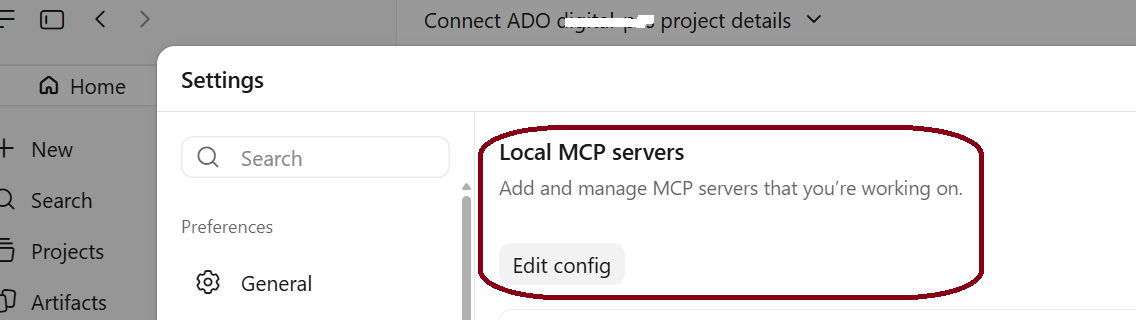
Open the Claude desktop app. Go to Settings → Developer → Edit Config. This opens claude_desktop_config.json in your default editor. Replace the contents with the following, swapping in your real organisation name and PAT:
{
  "mcpServers": {
    "azureDevOps": {
      "command": "npx",
      "args": [
        "-y",
        "@azure-devops/mcp",
        "YOUR-ORG-NAME"
      ],
      "env": {
        "AZURE_DEVOPS_ORG": "YOUR-ORG-NAME",
        "AZURE_DEVOPS_PAT": "YOUR-PAT-HERE"
      }
    }
  }
}
Save the file. That is the entire config. The command and args tell Claude how to start the MCP server process. The env block passes your credentials to that process. Claude manages the process lifecycle automatically — starts it when needed, keeps it alive during your session.
💡 On Windows the config file lives at
%APPDATA%\Claude\claude_desktop_config.json. On macOS it is at~/Library/Application Support/Claude/claude_desktop_config.json.
Step 4: Restart Claude and Confirm the Server Is Running
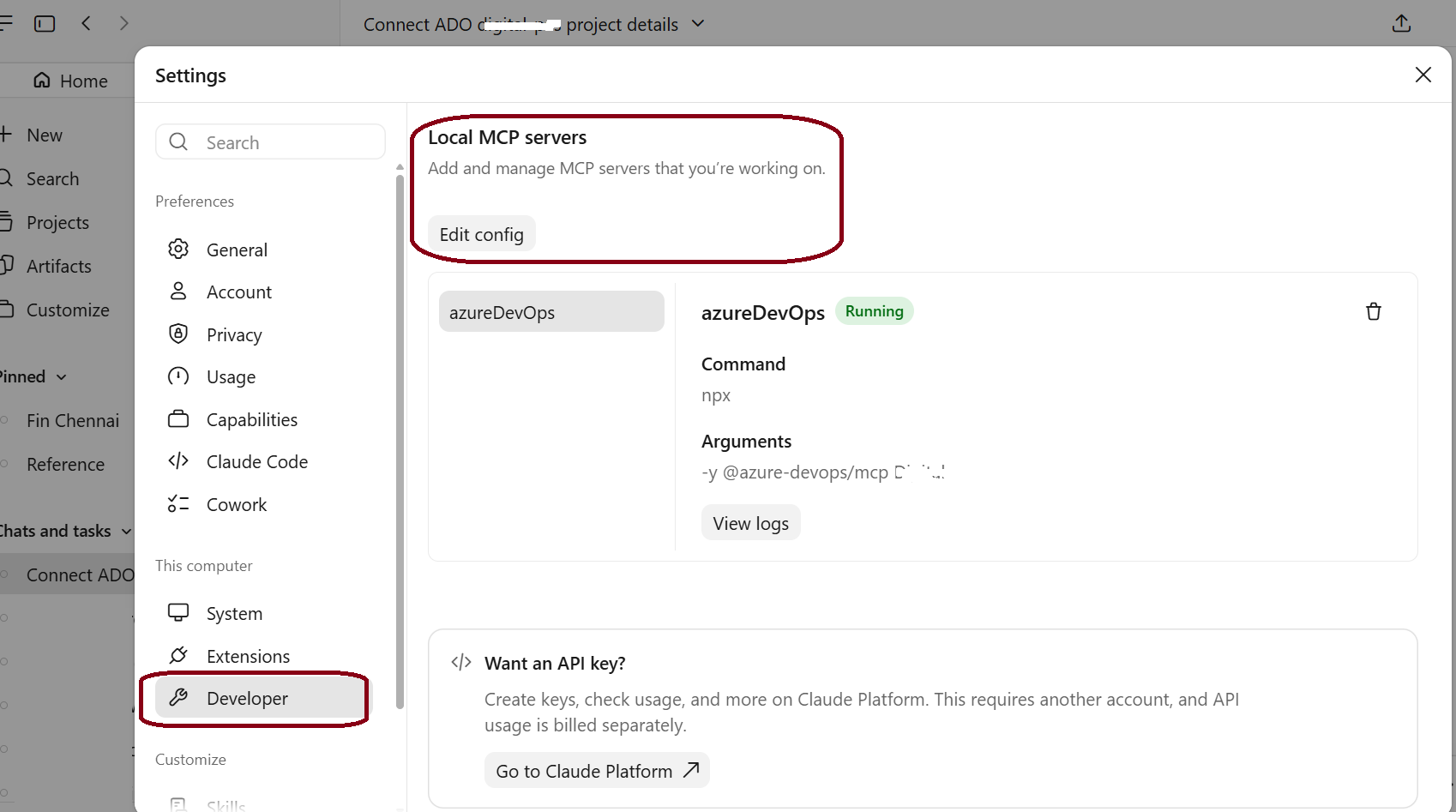
Fully quit the Claude desktop app — not just close the window, actually quit it from the system tray or menu bar. Relaunch it. Go to Settings → Developer and look for your server. You want to see this:
Local MCP servers
──────────────────────────────
azureDevOps     ● running
  Command:      npx
  Arguments:    -y @azure-devops/mcp YOUR-ORG-NAME
If you see real team names from your organization come back in the response, your Azure DevOps MCP connection is live. The two most common culprits are: Node.js not found in PATH, or an invalid PAT. Fix one of those and try again.
Step 5: Fire Your First Test Prompt
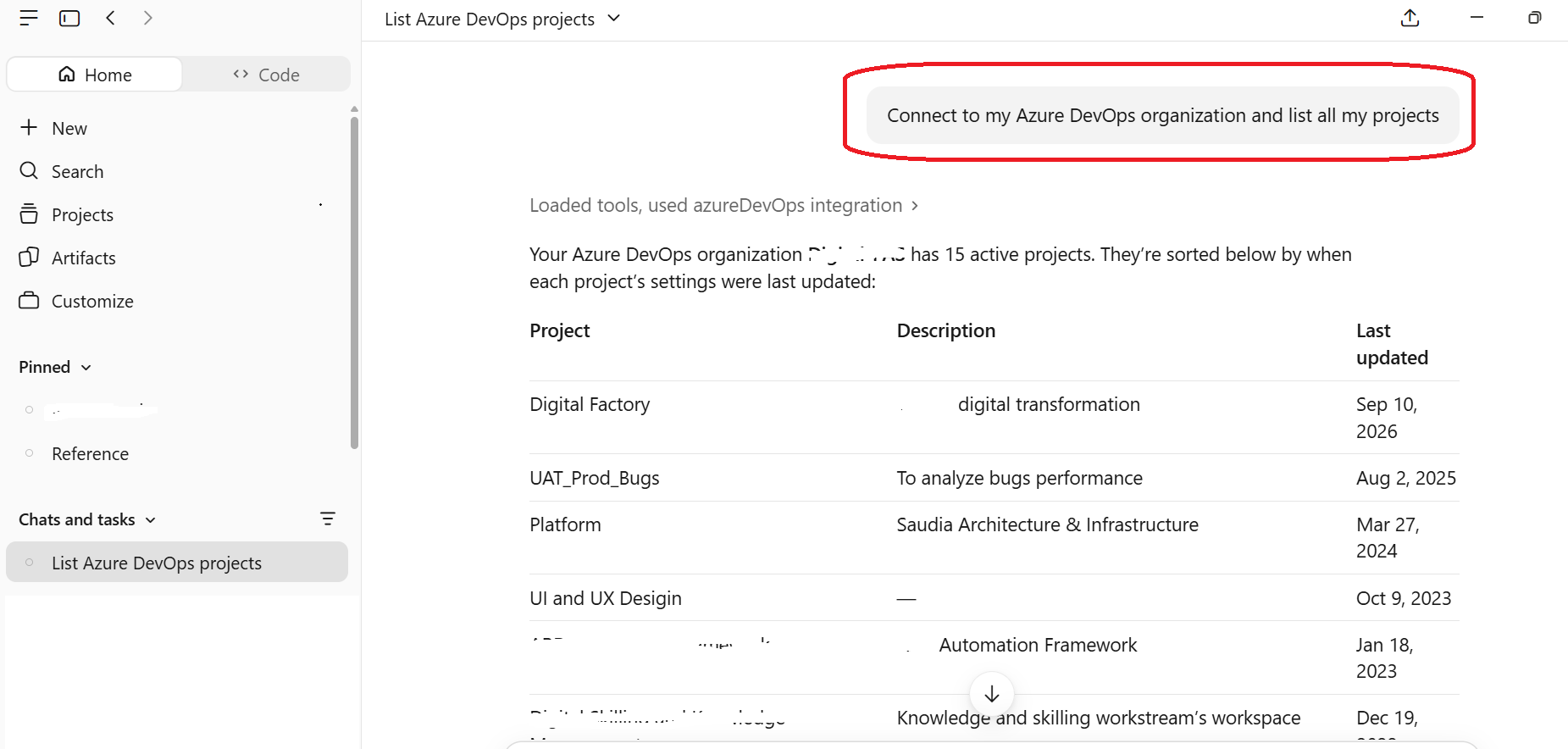
Open a new chat and type this — replacing the org and project name with yours:
Connect to my Azure DevOps organization and list all teams in my project
If you see real team names from your organization come back in the response, you are live. That is it. The integration is working. Everything from here is just learning what to ask for.
Step 6 : Option B: Azure DevOps MCP Without a PAT (Browser Sign-In)
Do not want to create and manage a PAT? Or does your organization restrict PAT creation by policy? You can skip Step 1 entirely and sign in with your Microsoft work account in the browser instead.
The config is even shorter. There is no env block and no token:
Replace YOUR-ORG-NAME with your Azure DevOps organization name.
{
  "mcpServers": {
    "azureDevOps": {
      "command": "npx",
      "args": [
        "-y",
        "@azure-devops/mcp",
        "YOUR-ORG-NAME"
      ]
    }
  }
}
Here is what happens the first time:
- Save the config, then fully quit and relaunch Claude Desktop (same as Step 4 below).
- Type your first prompt, for example:
List all teams in my project - Your browser opens the Microsoft sign-in page. Sign in with the work account you use for Azure DevOps, and complete MFA if your company requires it.
- When the browser confirms you are signed in, switch back to Claude. Your results come through, and every prompt after that just works.
No token to copy, no token to store, and no calendar reminder to rotate it.
My rule of thumb: use browser sign-in on your own laptop for day-to-day work. Use a PAT when you want to limit what Claude can touch, for example Work Items only.
Real Prompts I Use Every Day
These are not hypothetical examples. These are the exact prompts I type, word for word, on a daily basis.
1️⃣ Bulk story creation before sprint planning
Create 5 User Stories on the DevOps board — “AI Integration Analysis”, “AI Integration with Claude MCP on ADO”, “AI Integration with Claude MCP on Infra”, “Setup MCP for ADO in App Service”, “Setup MCP for Infra in App Service” — assign all to me, set Active, and give me the IDs
Result: 5 stories created in about 10 seconds. What used to take me 8 minutes of clicking now takes 10 seconds of typing.
2️⃣ Morning standup — what am I working on?
Show me all Active User Stories assigned to me on the DevOps Team board
Returns a clean table. I copy it into our Teams standup channel. Done.
3️⃣ Assign a story to a teammate by their display name
Create a story “Sitecore Database — map to Azure AD login instead of SQL user accounts” and assign it to Yeftha P Pattabhi, set Active
Claude resolves the display name to the correct email UPN automatically. No need to know or type email addresses.
4️⃣ Create a story that references another story
Create “B2B Portal: DevOps Prod support — 12 June Release” with a description that references User Story #325899, assign to me, state New
Claude writes the HTML description with a properly formatted hyperlink to the referenced item. It handles the markup so you do not have to.
5️⃣ Infrastructure incident — create a story mid-incident
Create an Active story “b2b WE region — sitecore CD ERR_CONNECTION_CLOSED — ALB ingress issue” on the DevOps board, assign to me, add description: ALB ApplicationLoadBalancer resource not found, ingress class azure-alb-external, investigating ALB controller and NSG
During an incident, the last thing you want is to context-switch into ADO. This lets you log the ticket in seconds without leaving your terminal workflow.
Everything Claude Can Do with the Azure DevOps MCP Server
| Area | Capabilities |
|---|---|
| Work Items | Create, update, assign, query, comment, link, and close Stories, Bugs, Tasks, and Epics |
| Boards & Sprints | List teams, query backlogs, check iterations, view board state by team |
| Pipelines | List builds, check status, view logs, trigger runs, check build stage status |
| Repositories | Browse repos and branches, view file content, create pull requests, search commits |
| Search | Full-text search across work items, code, and wiki within the organisation |
| Wiki | Read, create, and update wiki pages — useful for runbooks and post-incident docs |
| Test Plans | List test plans, suites, and cases — useful for QA sprint coordination |
Troubleshooting: The Gotchas I Hit So You Do Not Have To
MCP server shows “stopped” immediately after launch
Almost always a PATH issue. The Claude desktop app may not inherit your shell’s PATH, so it cannot find node or npx. Fix it by using the full path to npx in your config:
which npx
Then replace "command": "npx" in your config with the full absolute path, for example "command": "/usr/local/bin/npx" on macOS or "command": "C:\\Program Files\\nodejs\\npx.cmd" on Windows.
Work item creation fails with field validation errors
Some ADO projects have required custom fields — Epic Name, Platform, Value Area, and so on. If Claude hits one of these, it will tell you in the error. Just add the field values to your prompt the first time, and Claude will carry the pattern forward for the rest of the session:
Create the story with EpicName: AO, Platform: Devops, ValueArea: Commercial
Stories created but invisible on the board
- The board URL might have state filters — check that New and Active are both enabled in the filter bar
- The story’s Iteration Path may not match the sprint the board is showing — switch to the Backlog view to see all items regardless of iteration
- The Area Path might not be assigned to the team — confirm the area path matches the team in Board Settings
MCP drops after machine sleep or VPN reconnect
The Azure DevOps MCP server process can die after a network change or laptop sleep. The fix is simple — quit and relaunch the Claude desktop app. The server restarts automatically. I keep a sticky note on my monitor that says “Claude acting weird? Restart app.” It covers 90% of issues.
Is Azure DevOps MCP Secure? The Architecture Breakdown
I know what you are thinking. You are a security-minded engineer. You want to know where the data goes before you type an ADO URL into an AI chat window.
Here is the honest breakdown. Your prompts and Claude’s responses go through Anthropic’s cloud infrastructure — same as any Claude.ai conversation. The MCP server process runs entirely on your local machine. Your PAT is stored in the local config file and is passed directly to the MCP process as an environment variable. It is never sent to Anthropic. Claude only sees the structured JSON response that the MCP server returns — work item IDs, field values, status codes. It does not see or store your PAT.
The risk profile is roughly equivalent to using a CLI tool that calls the ADO API. Your prompts contain ADO context (project names, team names, user names) — treat that the same way you would treat putting that information into any SaaS tool your organisation has approved.
🔒 Bottom line: Your PAT stays on your machine. Your ADO data goes through Anthropic’s cloud inside your prompt context. Review your organisation’s AI usage policy before rolling this out to a team.
What This Looks Like in Production (My Real Setup)
I run this Azure DevOps MCP setup daily against my Organization and projects on Azure DevOps, managing the DevOps Team board with about 60+ teams in the organization. Here is what a typical morning looks like:
- 08:00 — “Show me all Active stories assigned to me” → paste into standup
- 08:30 — Sprint planning — “Create these 6 stories from the release plan…” → done in 30 seconds
- During the day — Any incident or new task → create the story directly from the incident chat without leaving Slack or Teams
- End of day — “Update story #325918 to Resolved and add a comment: deployed to PPRD, monitoring”
Conservatively, I save about 20–30 minutes per day that used to go to ADO tab-switching. Across a sprint that is 3–4 hours back in my engineering time.
Conclusion
If you are a DevOps engineer, SRE, or platform engineer who lives in Azure DevOps, the Azure DevOps MCP integration is worth the 15 minutes it takes to set up. The MCP architecture is solid, the security model is reasonable, and the day-to-day time savings are real.
The bigger picture: MCP is a pattern, not just a product. Once you understand how it works with Azure DevOps, you can apply the same approach to GitHub, Jira, Kubernetes, AWS, and dozens of other tools that already have MCP servers published. You are not just setting up one integration — you are learning the protocol that is likely to define how AI connects to developer infrastructure for the next several years.
Give it a try. Come back and tell me what you built with it.
Quick Reference
- Claude desktop app: claude.ai/download
- Azure DevOps MCP package:
@azure-devops/mcpon npm - ADO PAT creation: Your org URL → User Settings → Personal Access Tokens
- Config file (Windows):
%APPDATA%\Claude\claude_desktop_config.json - Config file (macOS):
~/Library/Application Support/Claude/claude_desktop_config.json - MCP server logs: Claude desktop → Settings → Developer → View Logs
Notes
- Token rotation: Set a calendar reminder when you create your PAT. A 90-day PAT expiring on a Friday afternoon is not fun.
- Custom required fields: Every ADO project is different. If your project has required custom fields, mention them in your first prompt of the session — Claude will apply them consistently from that point forward.
- Multiple orgs: You can configure multiple MCP servers in the same config file, one per ADO organisation, each with its own PAT.
- Claude model: This setup uses Claude Sonnet 4.6 by default in Claude.ai. The MCP tooling works with all current Claude models.